

The settings described on this page are located in the ComfyUI in-app settings menu. You can open it by navigating to Settings (gear icon) or using the
Ctrl + , keyboard shortcut, then select the corresponding category to view and configure these options.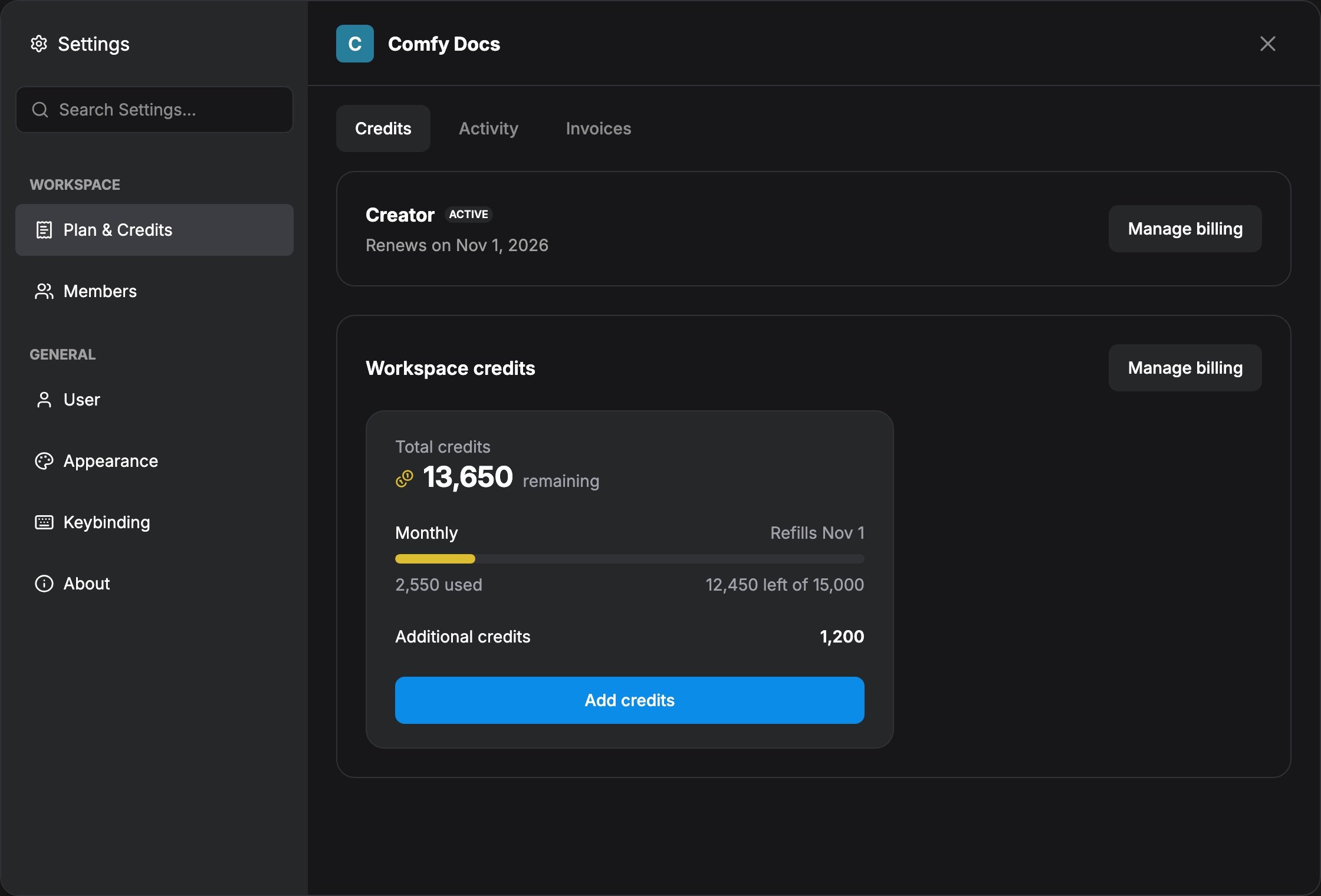
ComfyUI will always remain fully open-source and free for local users. Credit balances in screenshots are example data for illustration.
What’s in Plan & Credits
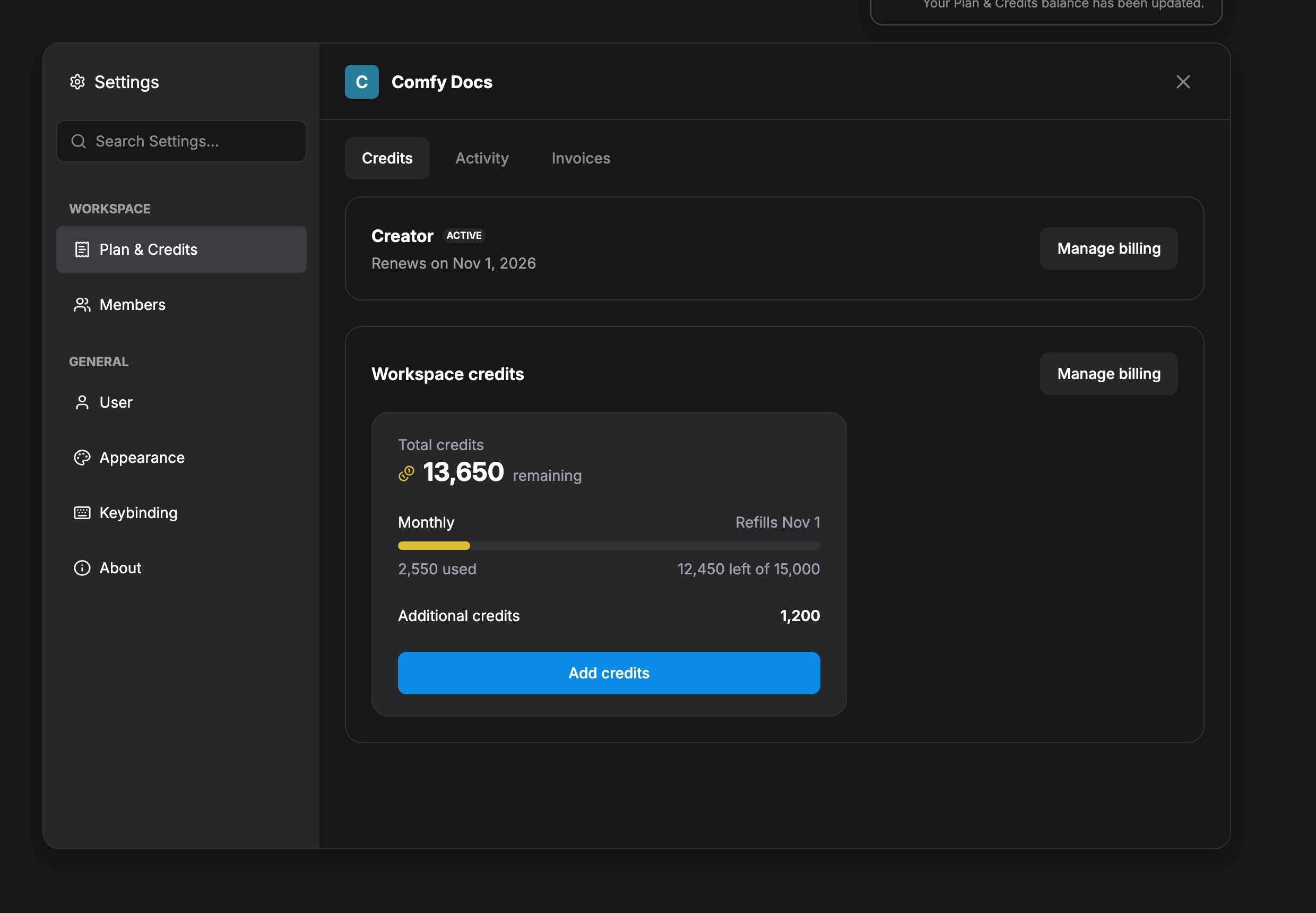
Open Settings → Workspace → Plan & Credits. On local installs the sidebar shows Plan & Credits under Workspace after you sign in (no Members / Invoices):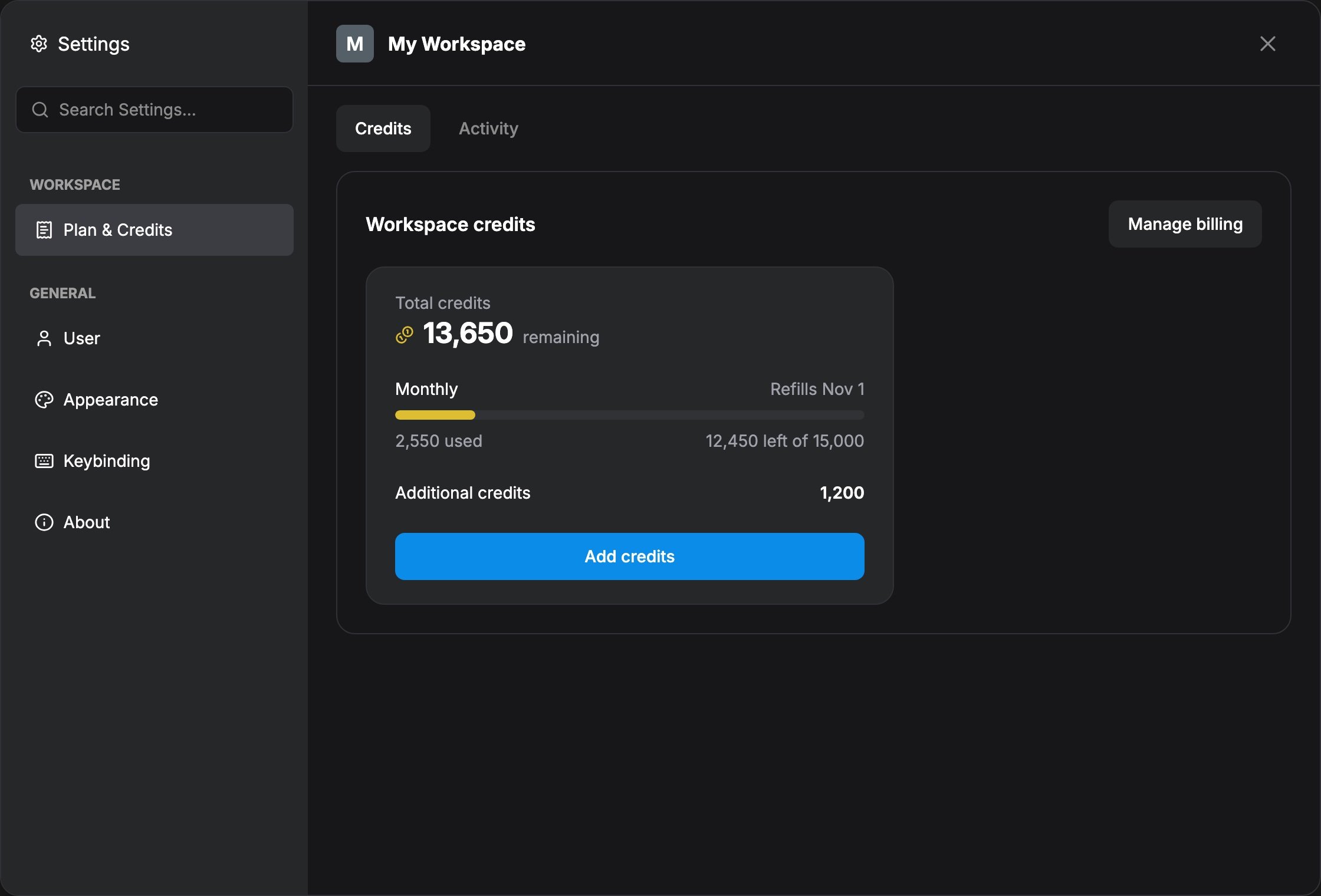
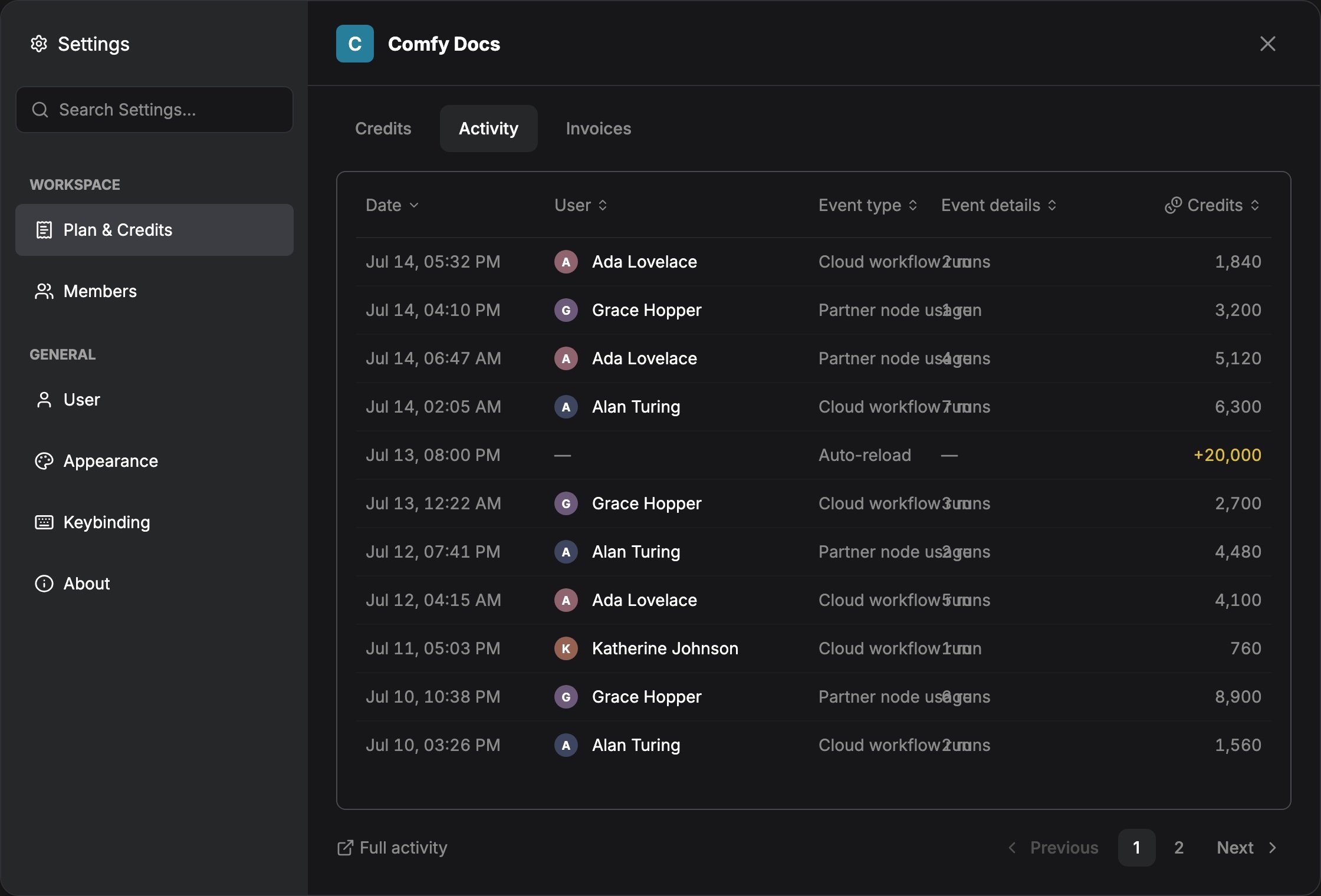
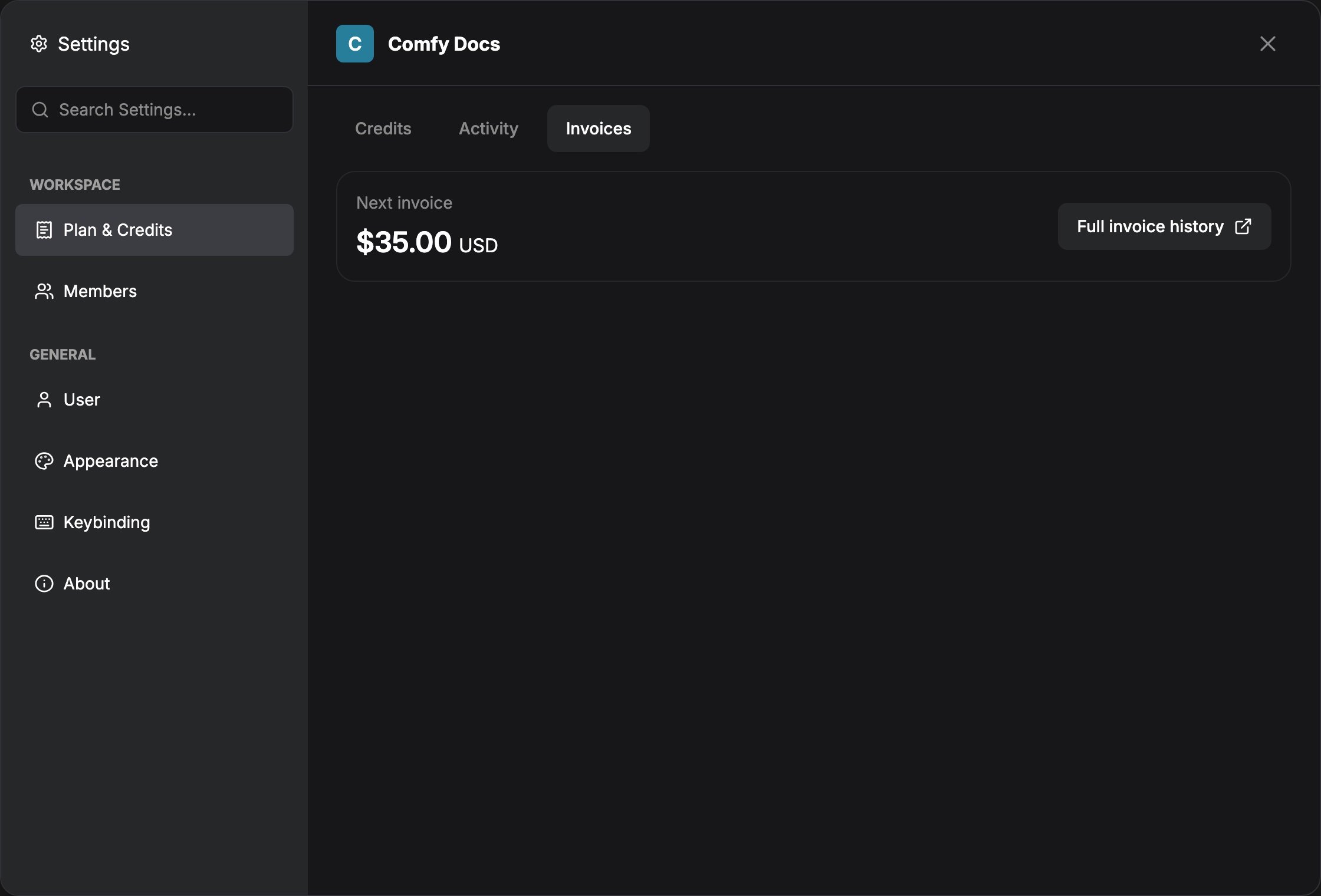
Manage Cloud subscription
Change plan, open Billing & invoices, Team vs Personal
Payment history
Invoices and PDFs in the Stripe billing portal
How to purchase credits
1
Log in to your ComfyUI account
Open Settings → User and sign in.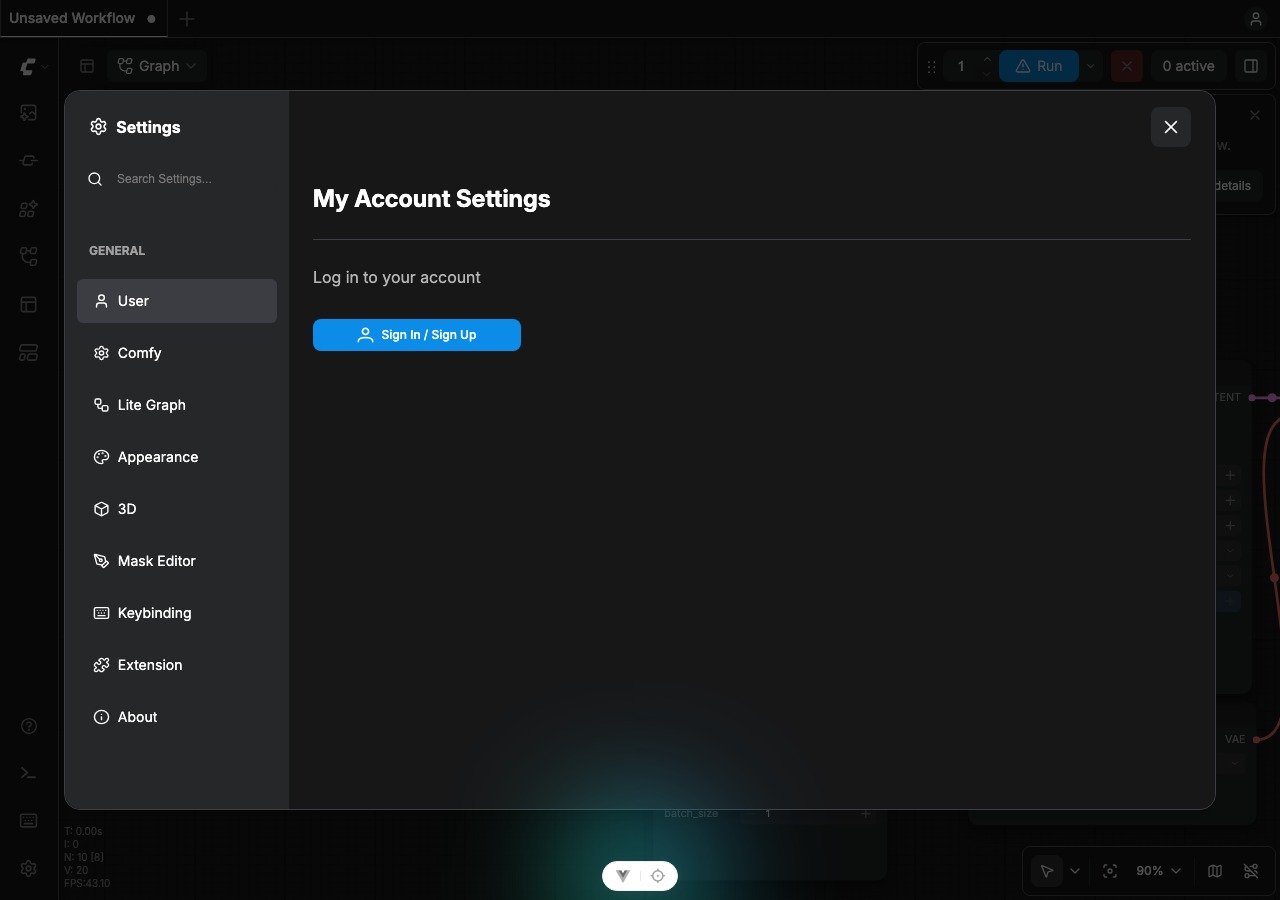
2
Open Plan & Credits
After login, open Settings → Workspace → Plan & Credits (or Cloud profile → Manage plan).
3
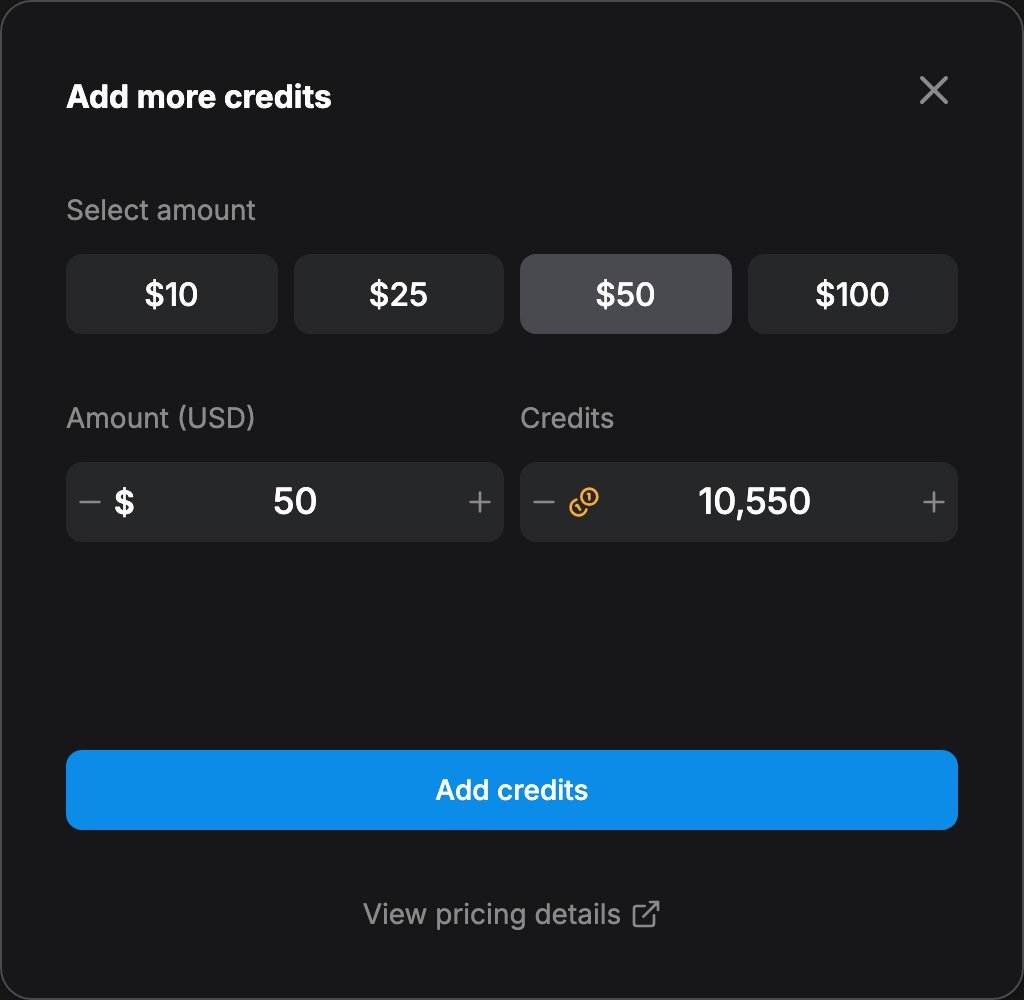
Set the amount of credits to purchase
4
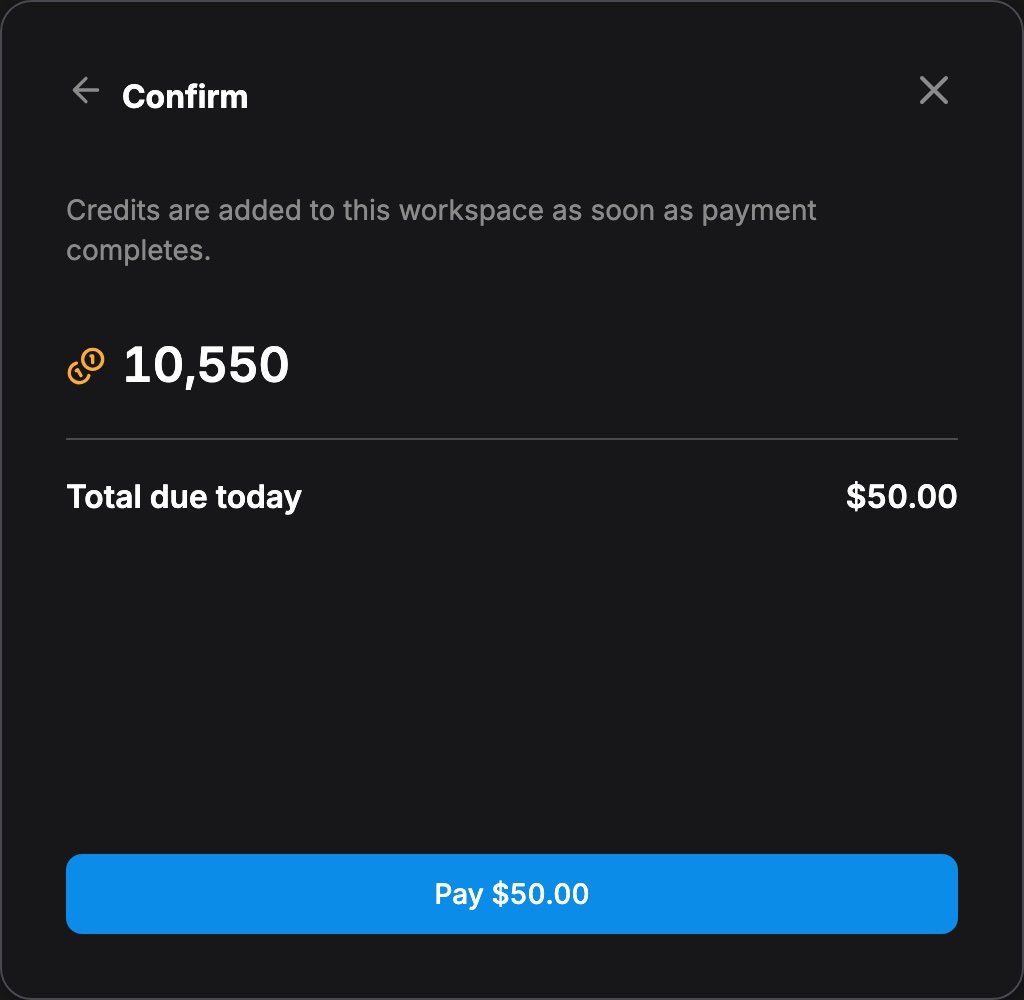
Confirm and complete payment
5
Confirm your balance
Frequently Asked Questions
Can credits go negative?
Can credits go negative?
Credits are not intended as a credit line. Partner Nodes sometimes report cost after execution, so one run can leave a temporary negative balance. While the balance is negative, Partner Nodes stay blocked until you top up.
Can I get a refund for unused credits?
Can I get a refund for unused credits?
Currently we do not support refunds for unused credits.
How do I check my current balance and usage?
How do I check my current balance and usage?
Open Settings → Workspace → Plan & Credits. Use the Credits tab for balance and the Activity tab for usage history.
How can I know how much the node will cost?
How can I know how much the node will cost?
Check the price badge on the API / Partner Node before running. Actual cost can vary with image size, generation count, and other parameters.
Why don't I see WeChat or Alipay payment options?
Why don't I see WeChat or Alipay payment options?
Choose payment in Comfy Credits. WeChat and Alipay are only available for that currency path.
Do credits come with a Cloud plan?
Do credits come with a Cloud plan?
No. Buying credits does not start a subscription and does not unlock Cloud workflows: running workflows on Cloud needs a plan. Partner Nodes in local ComfyUI and Desktop can use credits without a plan.
Do credits expire?
Do credits expire?
Yes, expiration depends on the type:
- Monthly credits: Expire at the end of your billing period
- Top-up credits: Expire 1 year from the purchase date