

Instance Types
Comfy Desktop supports four types of instances. Each type appears on its card and in the title bar; Tracked instances share the Standalone icon.
The image below labels the key actions available for each instance card:
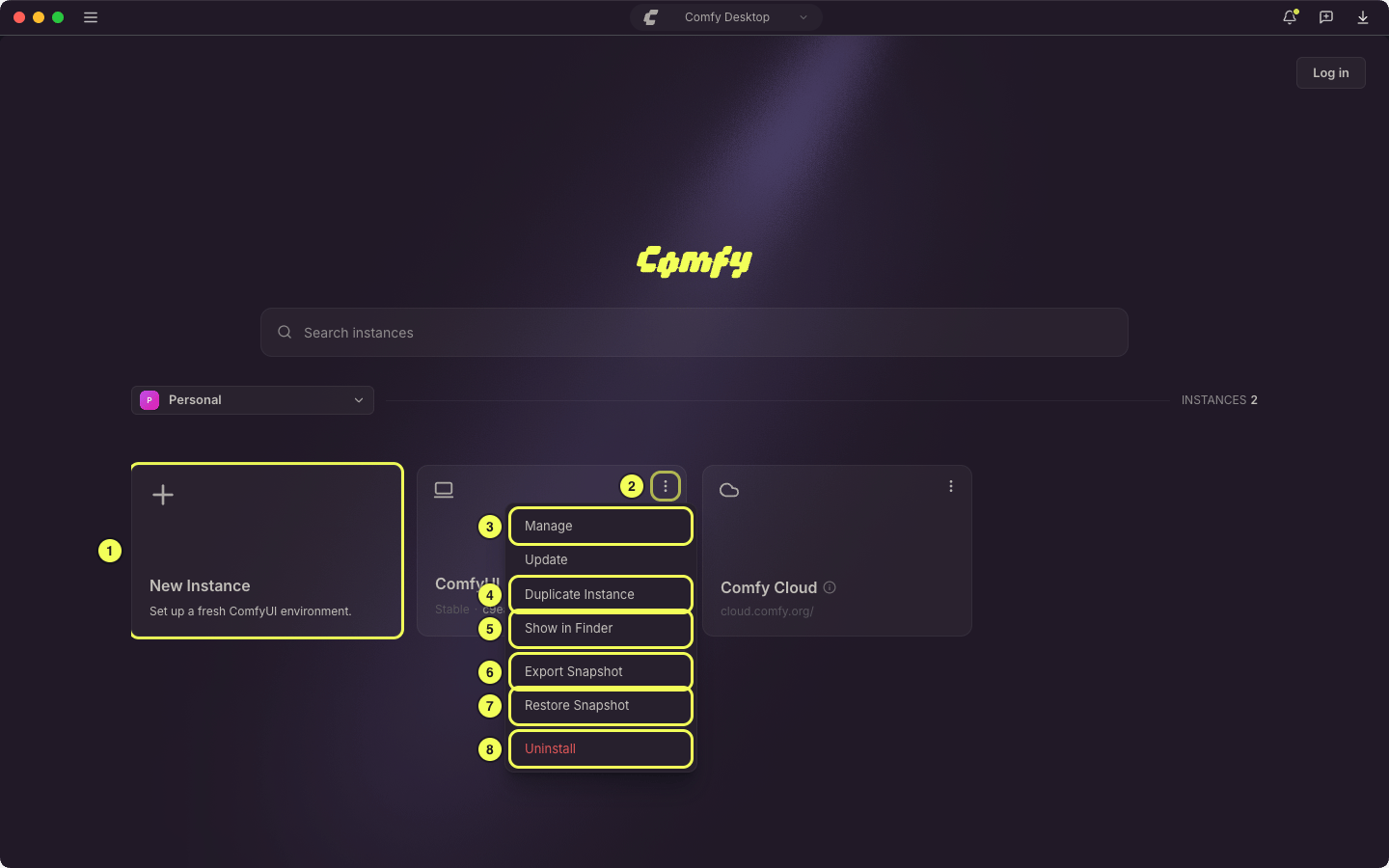
- New Instance: Create a brand new ComfyUI instance. See Creating a New Instance. You can also create an instance from a snapshot file.
- ⋮ Menu: Click the three-dot icon to open the action menu for an instance. Right-clicking the card opens the same menu.
- Manage: Open the Manage panel to configure the instance (path, launch args, model directories, environment variables). See the Manage page.
- Duplicate Instance: Copy a standalone installation, with its own Python environment and custom nodes. See Duplicating an Instance.
- Show in Finder, Show in Explorer, or Show in Folder: Open the installation folder in your file manager. The name follows your operating system.
- Export Snapshot: Export the instance’s newest snapshot to a file you can share. See Share a Snapshot.
- Restore Snapshot: Revert the instance to a previous snapshot. See the Snapshots page.
- Uninstall: Permanently delete the instance and all its files from disk. See Uninstalling an Instance.
Creating a New Instance
Click the + card (top-left) in the Chooser view to add a new ComfyUI instance.1
Create a New Instance
- Windows
- macOS
- Linux
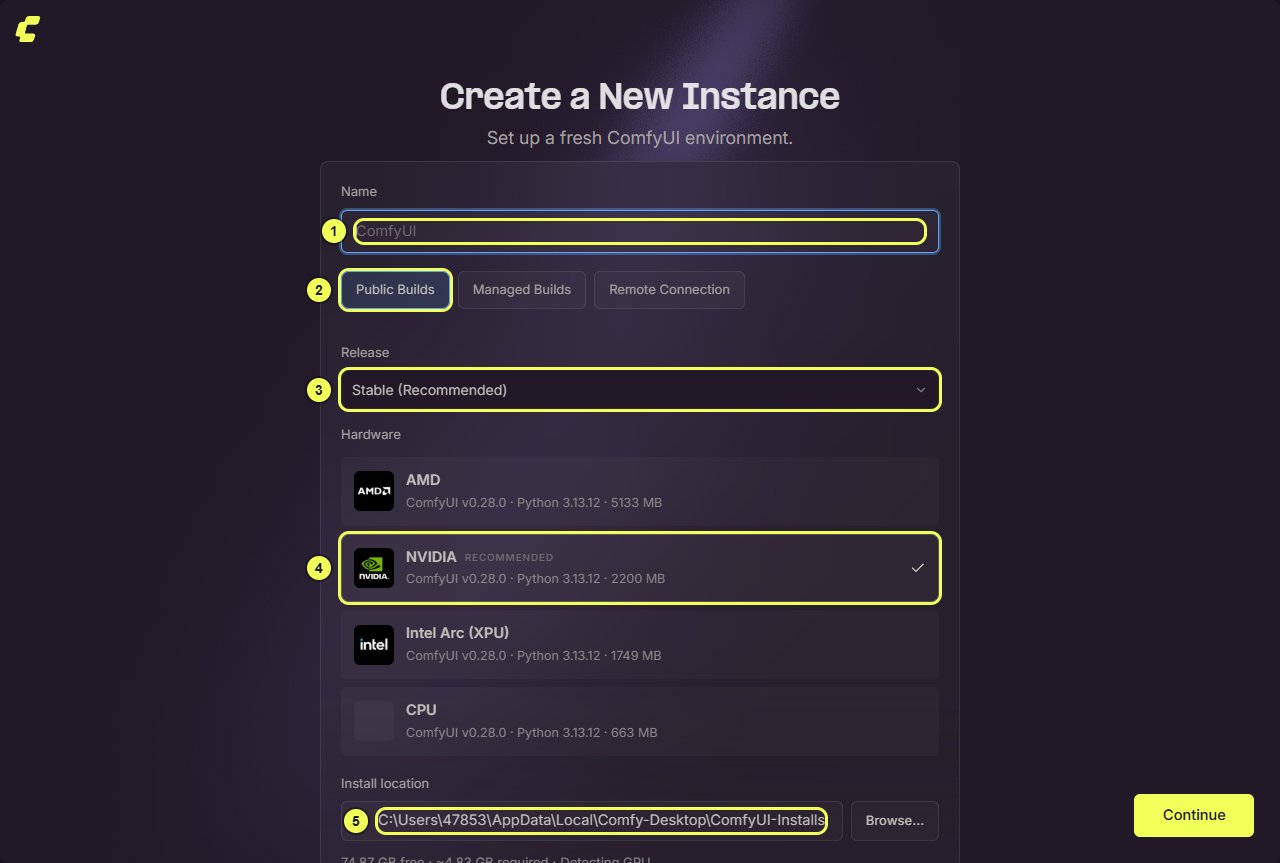
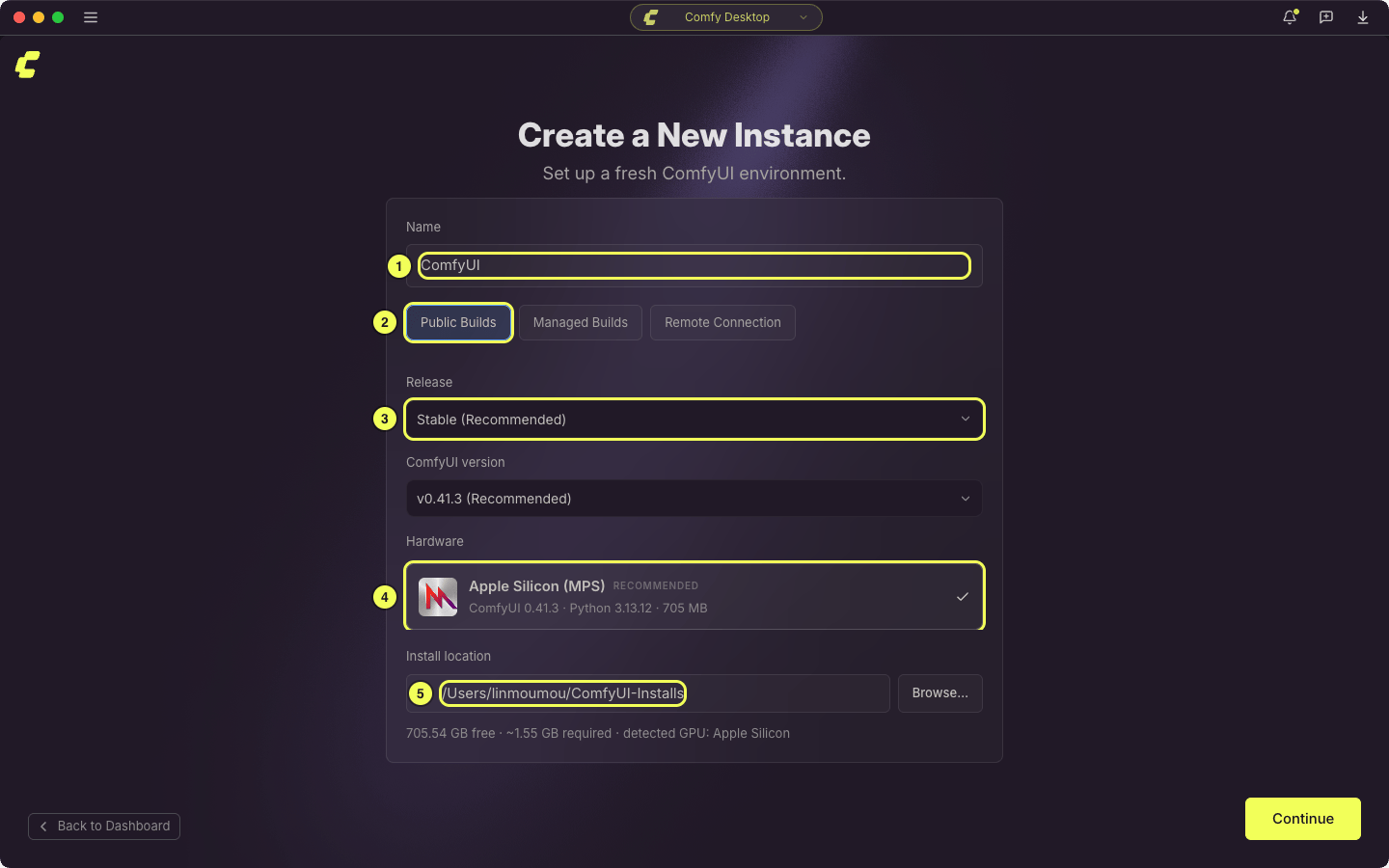
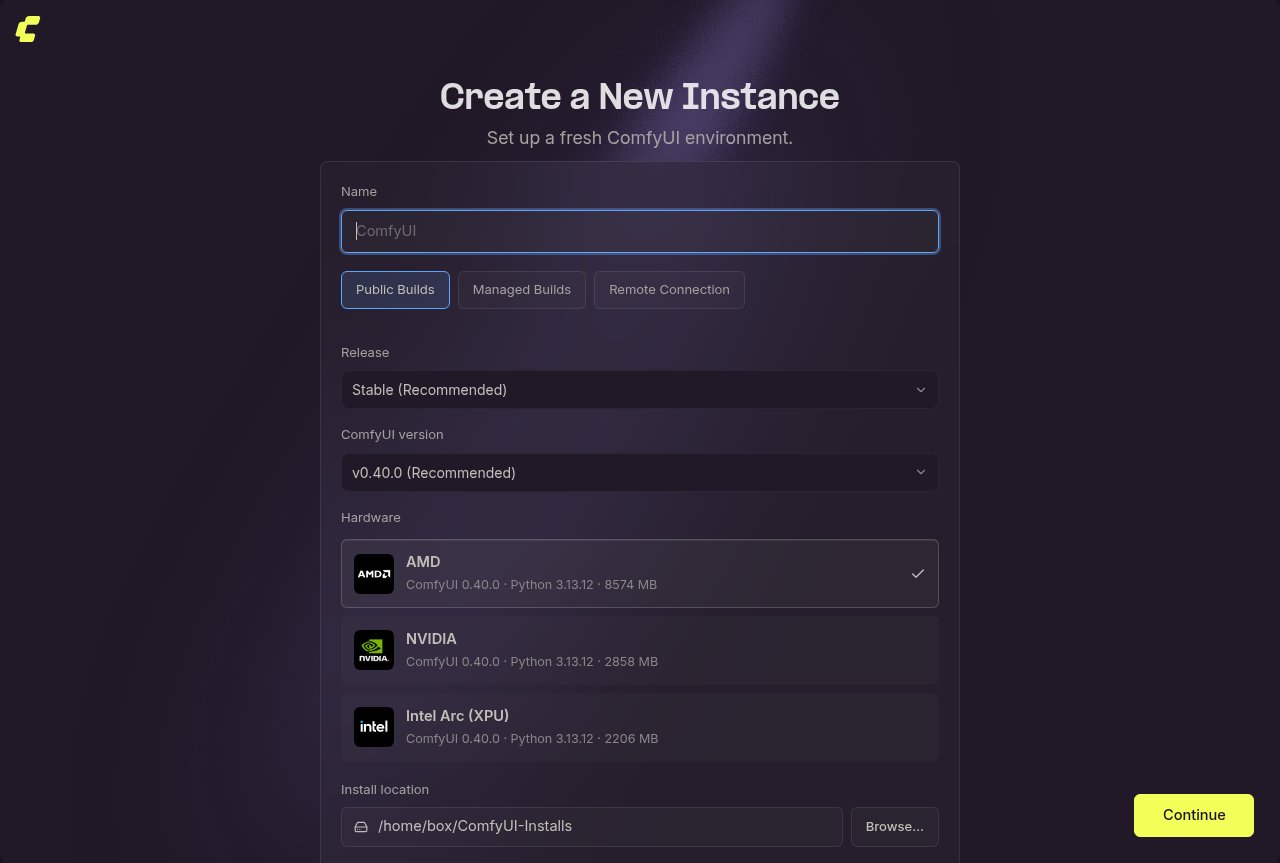
- Name: The name of your instance. The default is “ComfyUI”.
- Public Builds: The recommended option. A standard ComfyUI install built for your detected hardware. Select Managed Builds to install a Build from one of your workspaces instead (see Workspaces and Builds), or Remote Connection to connect to a ComfyUI instance running on another machine.
- Release: The release channel to install. Stable (Recommended) is preselected.
- Hardware: Comfy Desktop detects your GPU and preselects the matching build (NVIDIA, AMD, Intel Arc (XPU), or CPU). Each option shows the ComfyUI version, the Python version, and the download size.
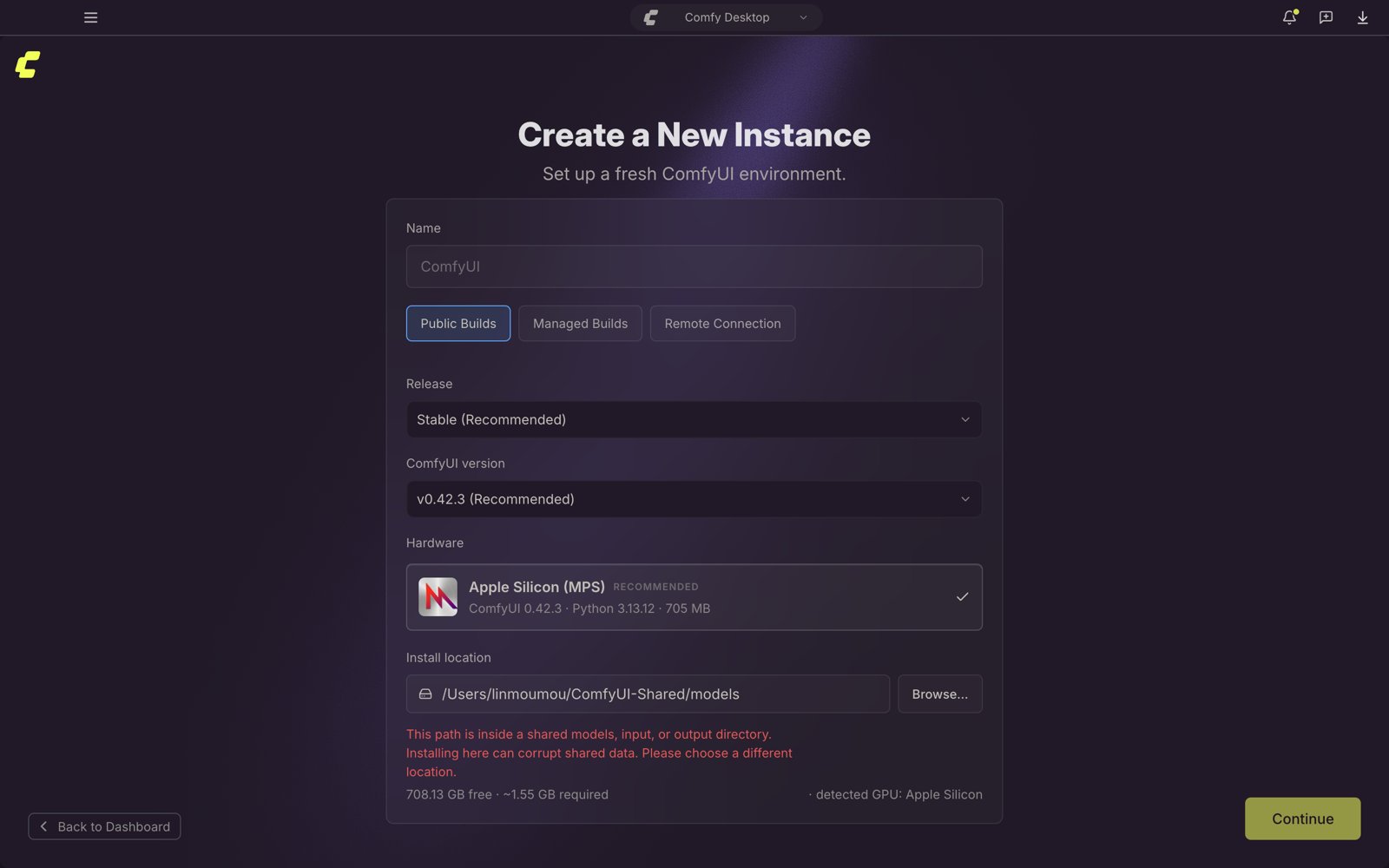
- Install Location: Where ComfyUI is installed. On Windows, it’s strongly recommended to use an SSD and avoid the root of the C: drive. The field shows free space on the drive and an install size estimate when Comfy Desktop knows it.
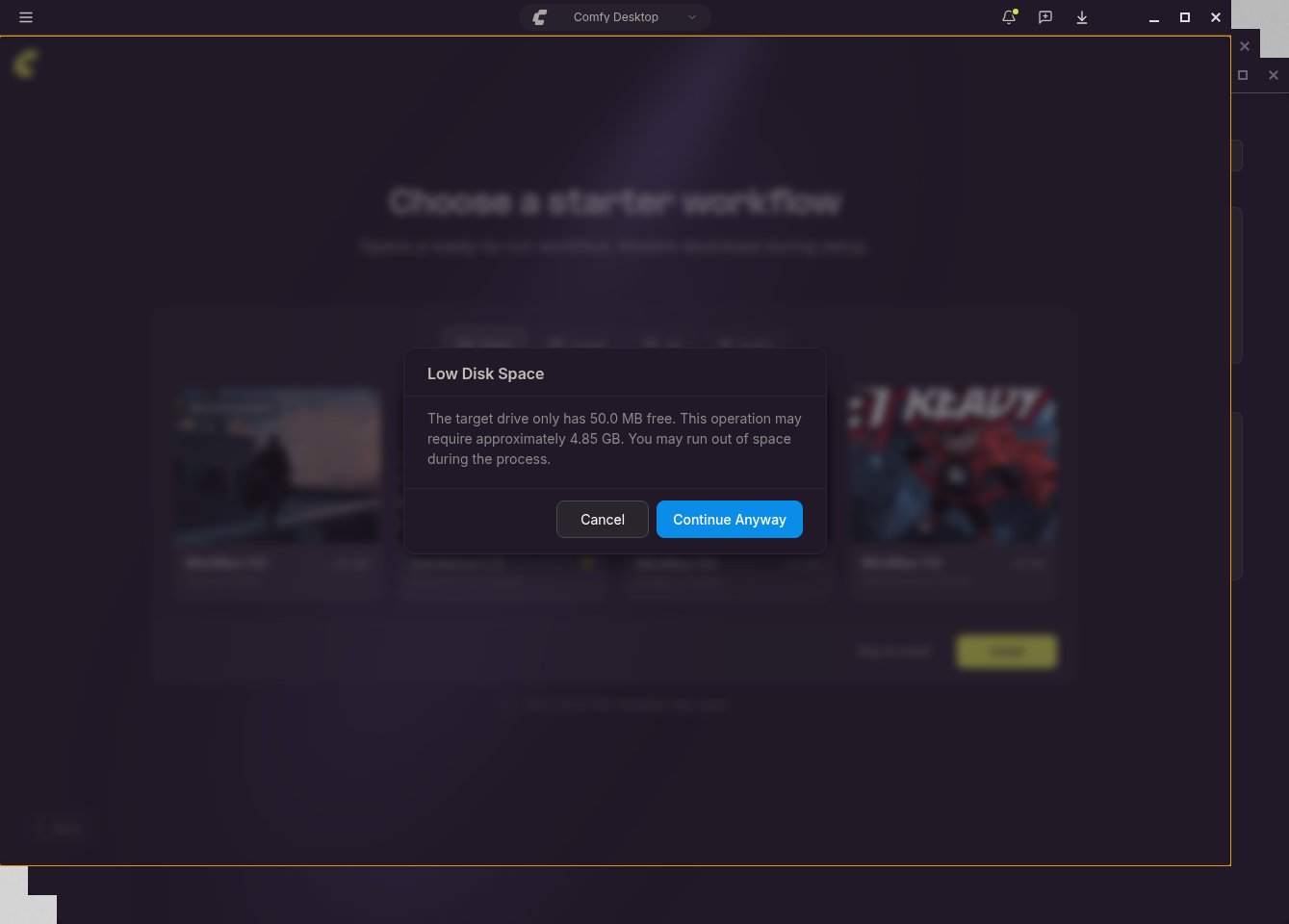
- Inside Comfy Desktop’s own files: the application folder, its bundled resources, its data folder, and on Windows its updater caches. Those files are replaced when the app updates, so an installation there would be deleted. On macOS this covers anything inside the Comfy Desktop app bundle.
- Inside OneDrive (Windows): cloud sync slows down a large Python environment and can corrupt files while they upload.
- Inside a shared models, input, or output folder: installing there can corrupt the files every instance shares. See Storage.
-
Inside another instance’s folder: the two installations would conflict and can corrupt data.
2
Installing
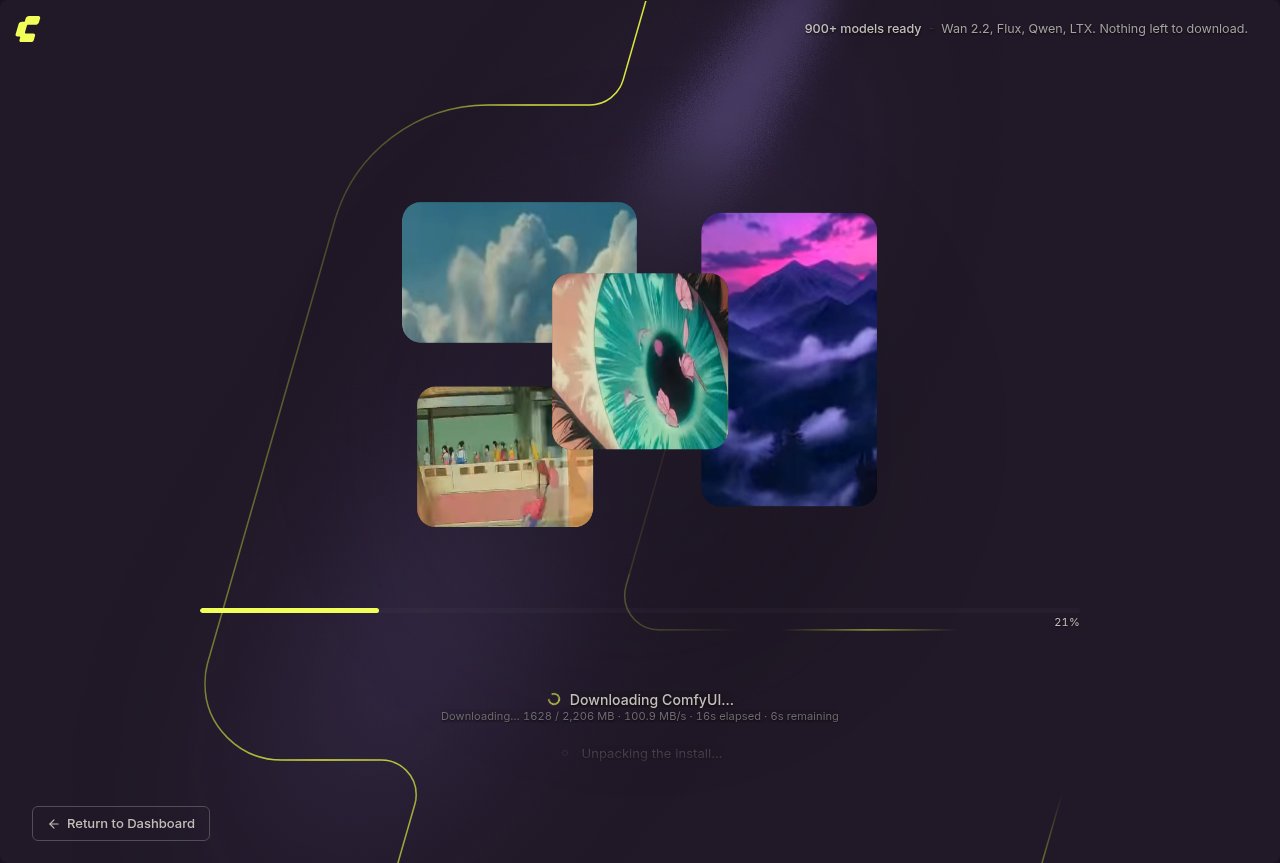
An install created from a snapshot does not auto-update, so its stepper skips the last stage and shows the two restore stages instead.When you picked a starter template, its models download in the background during the stages above, so the install does not wait for them. The stepper then ends with Downloading template models once ComfyUI has started, and that row stays until the files finish. Select Skip & open ComfyUI on that screen to open the instance right away; the transfer keeps running in the downloads tray.
3
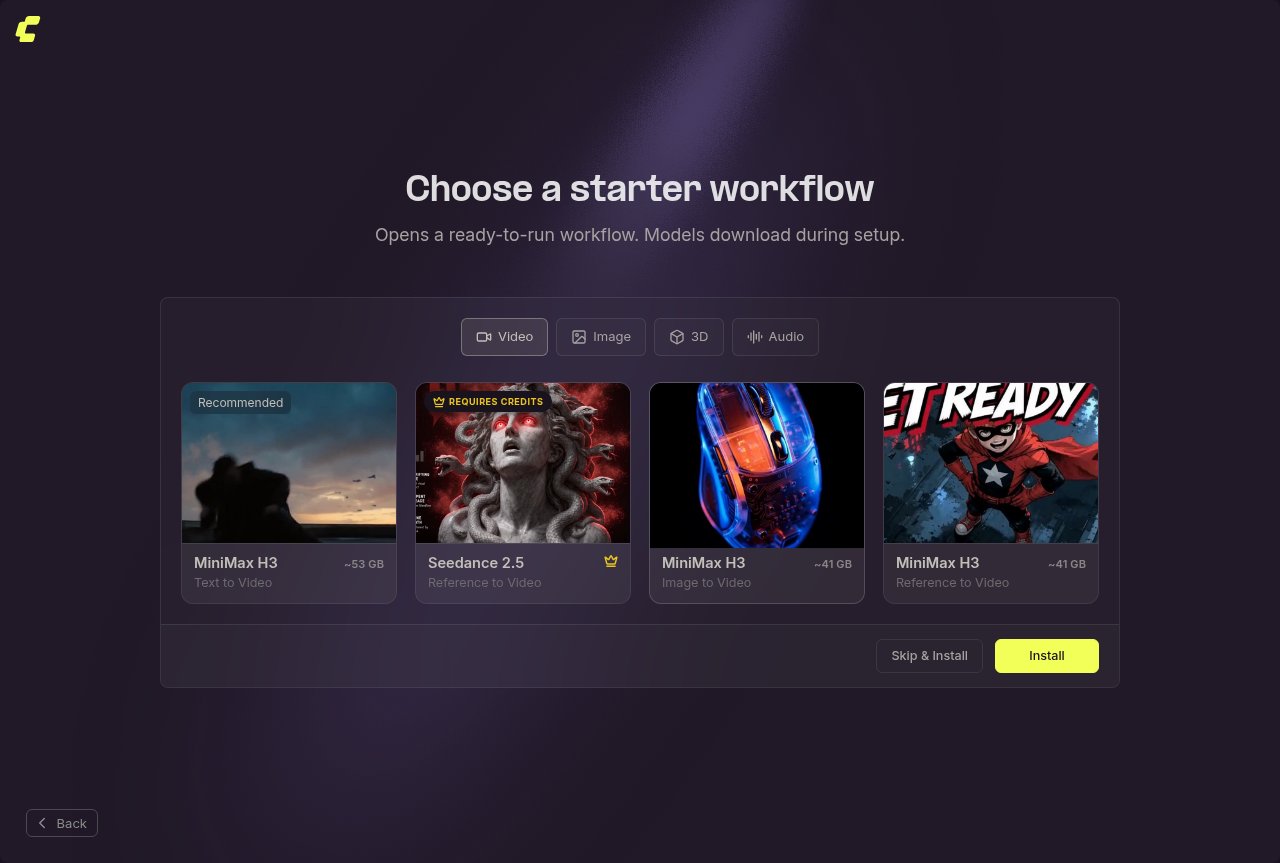
Choose a Template
Tracking an Existing Installation
If you already have a ComfyUI installation (either manually set up from the Git repository or downloaded as a portable version), you can add it to Comfy Desktop without creating a new one. Open the ☰ menu in the title bar and select Add Existing Instance.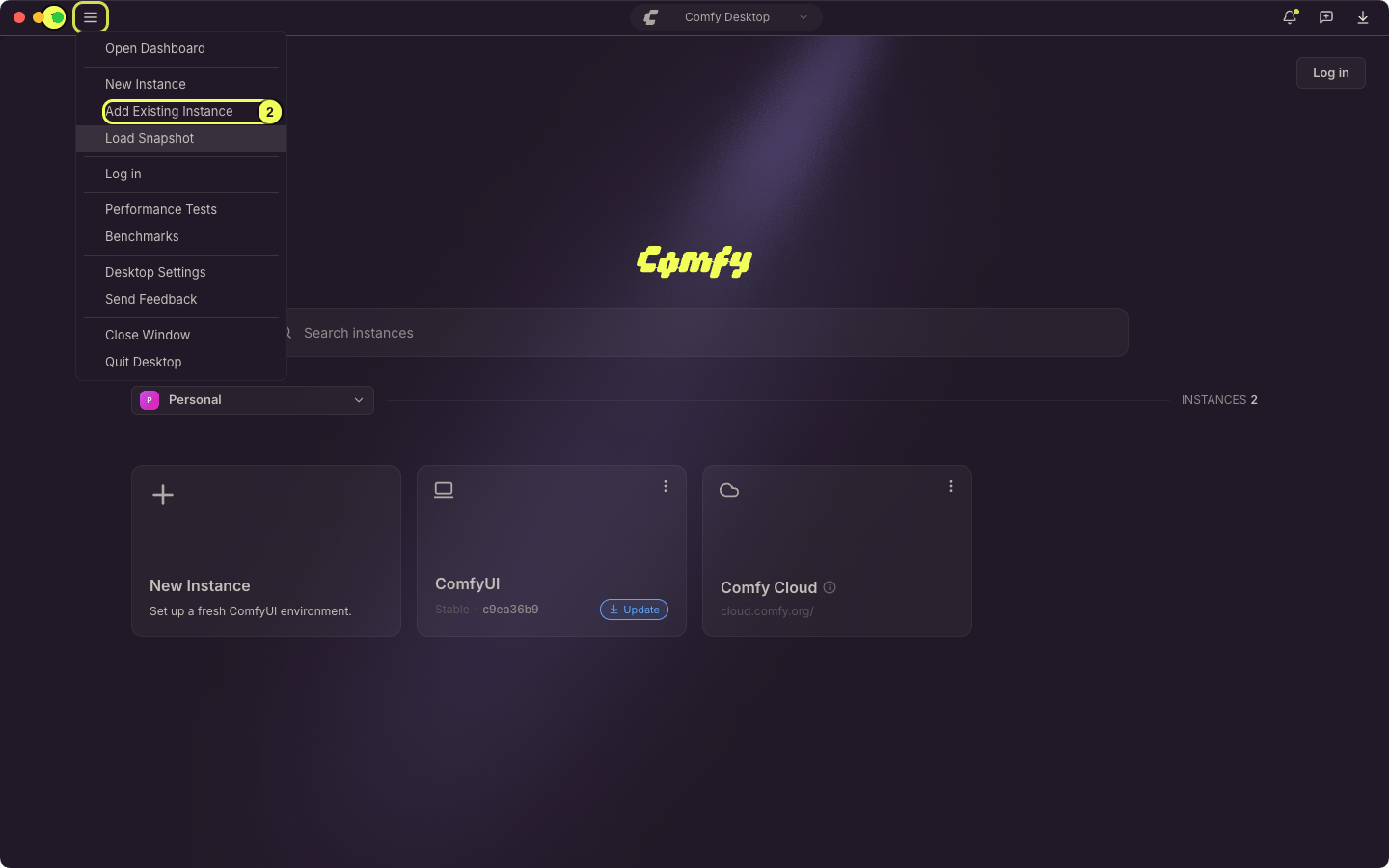
- The ☰ menu button in the top-left corner of the title bar.
- Add Existing Instance: Opens the dialog that tracks an existing ComfyUI installation.
Detecting Your Installation
In the dialog, click Browse… and select the installation folder. Comfy Desktop probes the folder and fills in the rest of the dialog. The Detected type dropdown lists what it found:- Standalone: A Comfy Desktop installation. The probe looks for a
standalone-envdirectory andComfyUI/main.py. - Portable: A Windows portable build. The probe looks for
python_embeded, either in the folder you selected or in a folder directly inside it. - Git Clone: A clone of the ComfyUI repository. The probe looks for a
.gitdirectory. - Legacy Desktop: An installation of the older ComfyUI Desktop app, recognized by its
models/,user/, and.venvdirectories. See Migrate from Legacy Desktop.
Confirming the Detected Installation
After the probe finishes, the dialog shows what it found. Check the paths before you track the installation.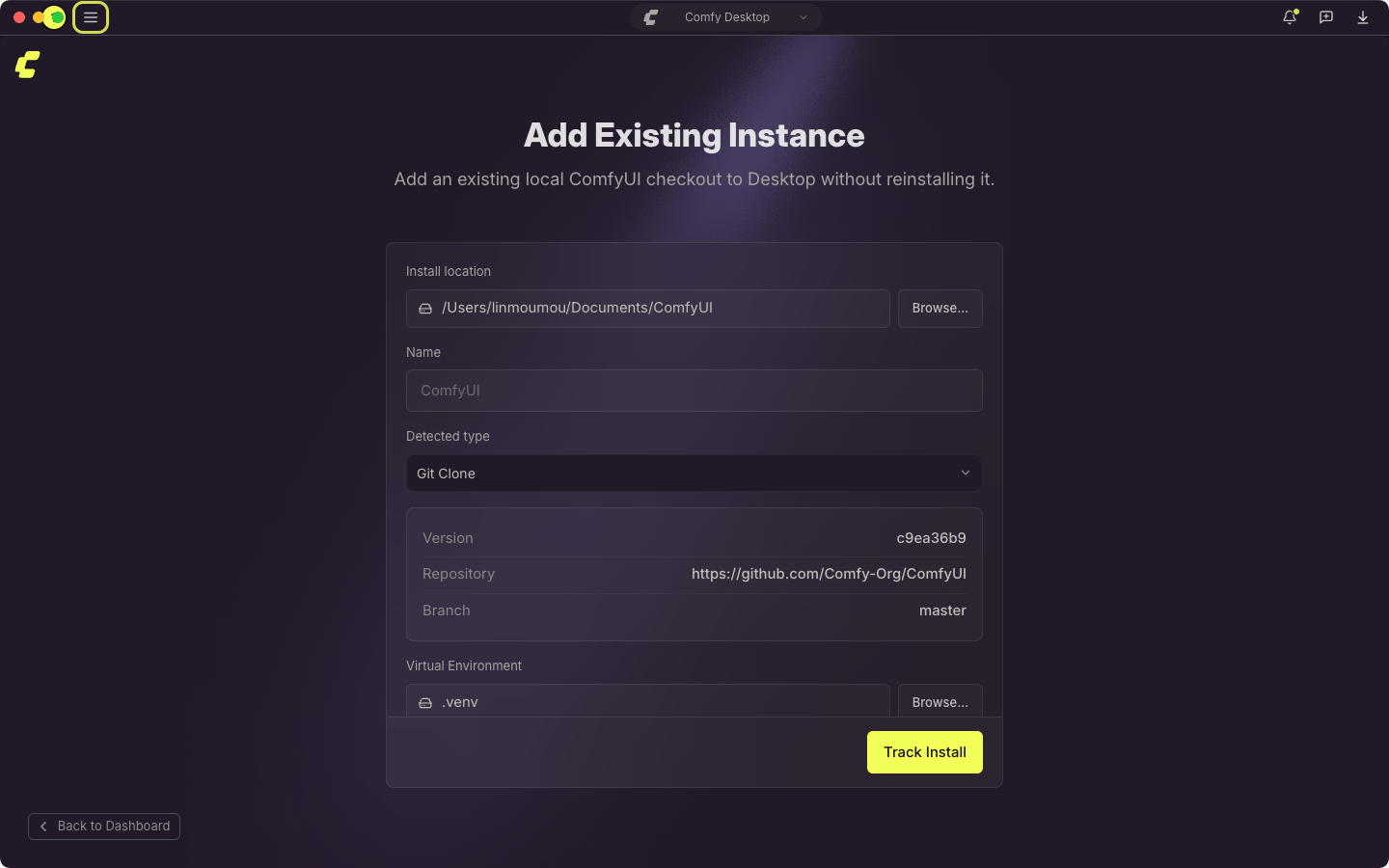
- Install location: The folder you selected. Click the path to open it, or Browse… to pick another one. For a portable build, point at the folder that contains
python_embeded. - Name: How the instance is listed in the Chooser. The dialog suggests a name.
- Detected type: Which kind of installation the folder holds.
- Version, Repository, and Branch: Shown for a Git clone.
- Virtual Environment: Shown for a Git clone when Comfy Desktop finds one, in
.venv,venv,.env, orenvwith apyvenv.cfgfile inside. Browse… points the instance at a different environment.
Track vs Standalone
The key difference between a Tracked (Add Existing Instance) installation and a Standalone installation is how updates are managed:Note: Comfy Desktop runs a tracked installation with its existing Python environment and does not reinstall ComfyUI or manage its packages. Snapshot capture runs only for Standalone instances.
Launching, Stopping, and Restarting an Instance
↩ Back to overviewLaunching an Instance
Click an instance card in the Chooser to launch it. While ComfyUI starts, the window shows the startup progress, then the ComfyUI interface once the server is ready.Launching While Another Instance Is Running
When you launch a local instance while another local instance is running or starting, Comfy Desktop shows an An instance is already running dialog that lists the instances it would stop:- Close & Launch: stops the listed instances, then launches the one you picked.
- Run All: launches the new instance alongside the running ones.
When the Port Is Already in Use
ComfyUI listens on port 8188 unless the instance passes--port. Before it starts ComfyUI, Comfy Desktop checks that port, and the instance’s If Port is Busy setting on the Startup Args tab decides what happens when something else already uses it:
- Use next available port (asks if
--portis set), which is the default: Comfy Desktop starts ComfyUI on the next free port and says so in the startup progress. A busy port only stops the launch when the holder is a ComfyUI of this installation, see below. - Ask what to do: the launch stops on Port already in use, which names what holds the port, and you choose the next step.
--port in Startup Arguments also makes Comfy Desktop ask, even with the default setting, because that port was requested on purpose.
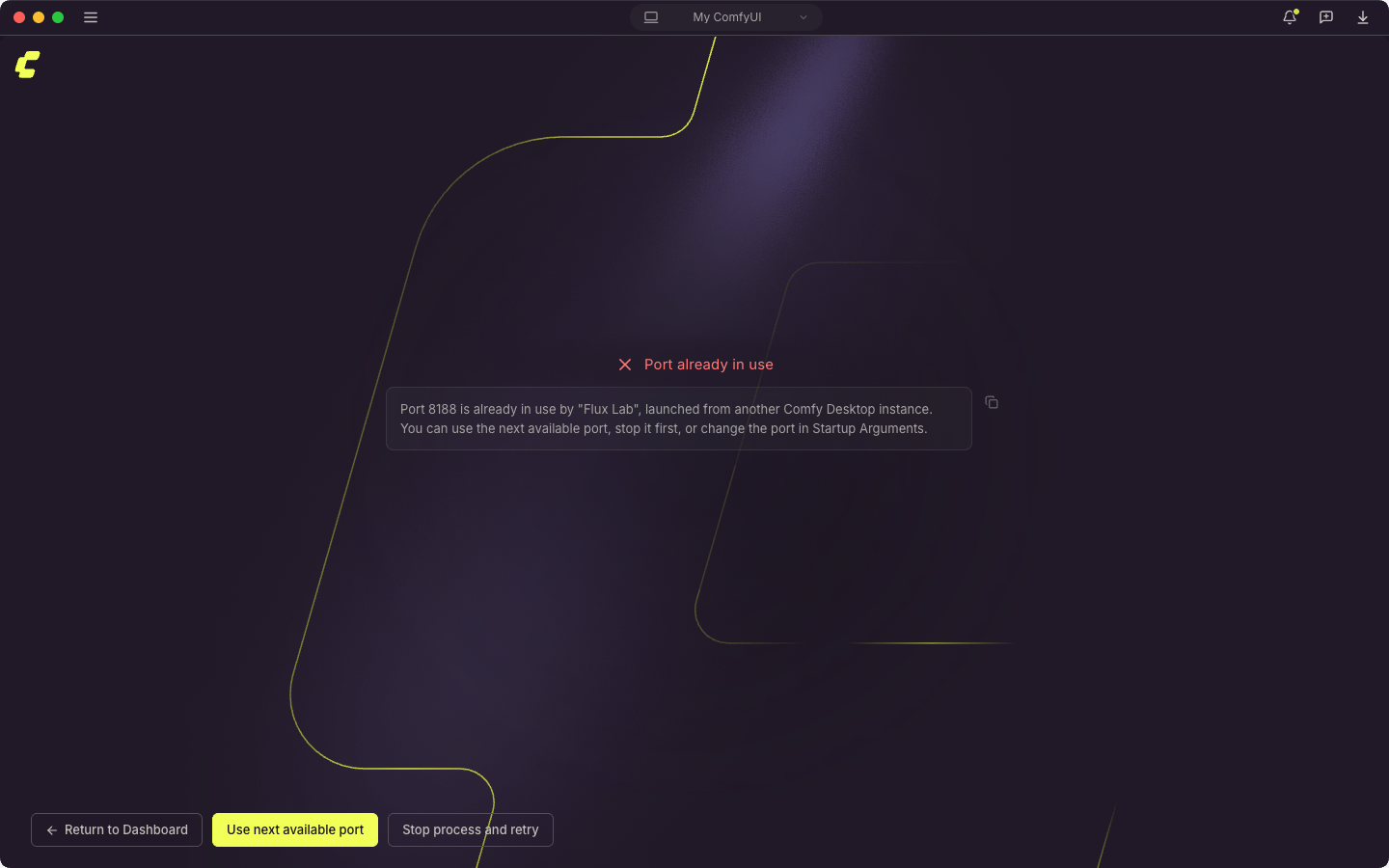
- Another Comfy Desktop instance: the message names that instance.
- A ComfyUI: the message says it looks like a ComfyUI instance, including one you started outside Comfy Desktop.
- Any other program: the message names the process, and Comfy Desktop does not offer to stop it.
- Use next available port: launches this instance on the next free port instead.
- Stop process and retry: force-stops the process that holds the port, then launches again. It appears only when the holder looks like a ComfyUI, and the confirmation warns that unsaved work in that ComfyUI is lost.
- Return to Dashboard: cancels the launch.
--enable-assets for ComfyUI 0.38.0 and later, unless the instance’s startup arguments pass --disable-assets.
A ComfyUI Left Behind by an Earlier Session
Before the port check, Comfy Desktop looks for a ComfyUI of the same installation that an earlier Comfy Desktop session left running. That process still holds the installation’s database, so a new ComfyUI would fail to start.- Still working on a prompt: the launch stops and says so. Stop it and launch stops that ComfyUI and cancels the prompts it is working on. Letting it keep running cancels this launch.
- Processes that no longer answer on the port: the message names their PIDs and offers Stop them and launch.
- A process that will not exit: the message asks you to end it manually, then launch again.
Stopping an Instance
Select Stop from the instance card’s ⋮ menu. The ComfyUI server stops and the window stays open with a ComfyUI is stopped card. Select Relaunch ComfyUI to start the server again, or Return to Dashboard to go back to the Chooser.Restarting After a Crash
If ComfyUI fails to start or exits unexpectedly, the window stays open with a card describing what happened:- ComfyUI could not start: the instance did not start.
- ComfyUI exited unexpectedly: the process stopped. When Comfy Desktop can read it, the card also shows the exit code, or the signal that ended the process.
- Another ComfyUI is using this installation’s database: close that ComfyUI (or the app that started it), or give one of them its own database location with the
--database-urlstartup argument. - Any other database failure, from one locked by another program to one written by a newer version of ComfyUI or impossible to create in that folder: the message names the file and the fix, and ends with the option to start the instance without the asset system, by adding
--disable-assetsto its startup arguments.
Uninstalling an Instance
↩ Back to overview When you want to remove an instance, two actions decide whether its files stay on disk.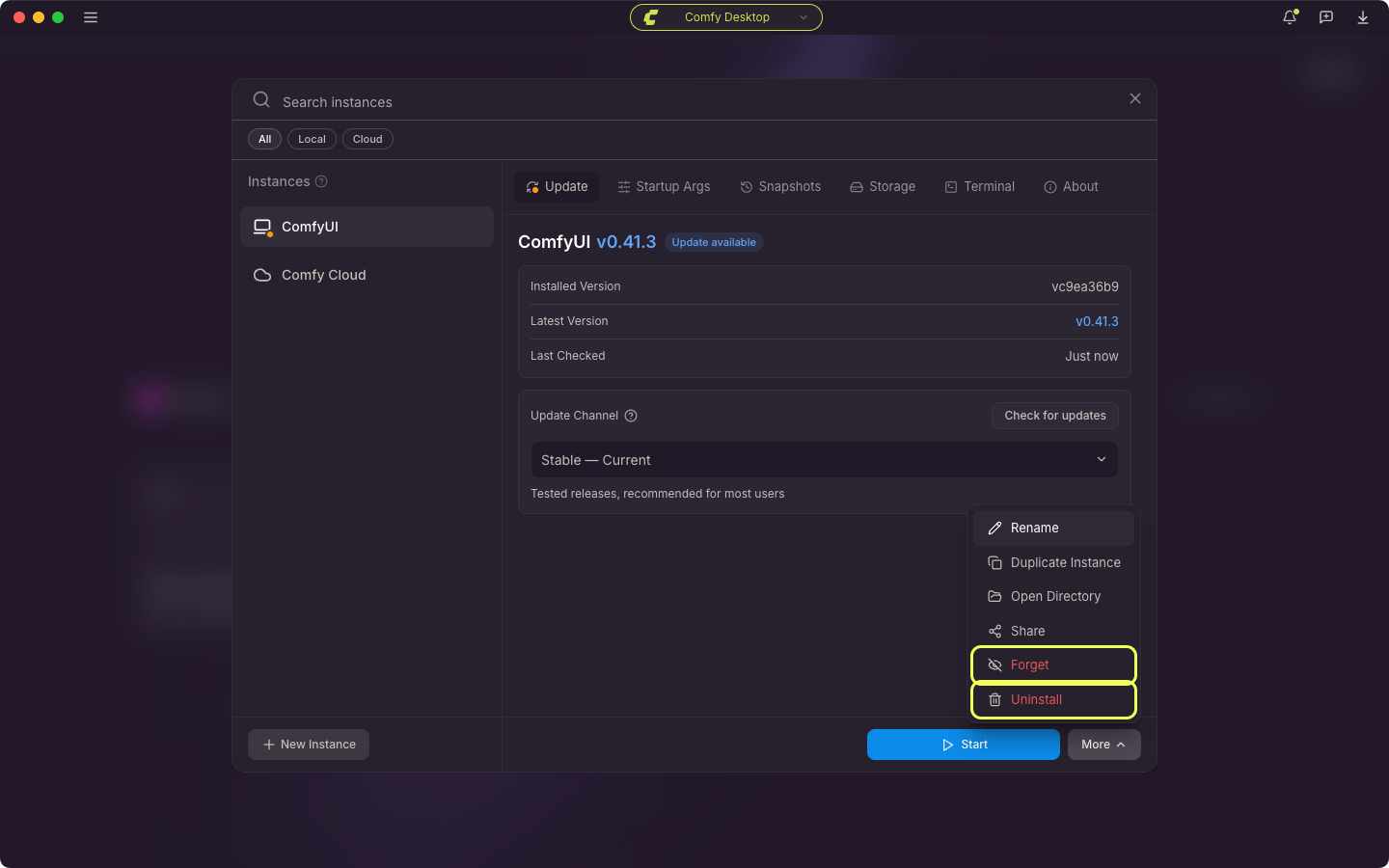
- Forget: Removes the instance from the app without deleting anything. The installation folder and all its data stay on disk. Use this when you only want to clean up the list but might need the instance again later.
- Uninstall: Permanently removes the installation and all its files from disk. Model files in shared directories are not affected.
Duplicating an Instance
↩ Back to overview You can duplicate an existing standalone installation. Open the card’s ⋮ menu and select Duplicate Instance, or use Duplicate Instance in the Manage panel’s More menu. The copy gets:- A new Python environment
- The same ComfyUI version
- Its own custom node setup
Editing an Instance
↩ Back to overview In the Manage panel for an instance, you can:- Change the installation path
- Adjust launch arguments
- Modify model directories
- Update environment variables
- Rename the instance, from the name at the top of the About tab or from Rename in the More menu
- Change the connection address of a Remote Connection, in the About tab