

What appears in the downloads list
- Missing models: when ComfyUI reports missing models in the missing-models dialog or the right side panel Errors tab, the download action is routed through Comfy Desktop. Each file is saved into the matching model folder, such as
checkpoints,diffusion_models,text_encoders,loras, orvae. Supported model file types are.safetensors,.sft,.ckpt,.pth, and.pt. - Template models: when you set up an instance from a starter template, the models that template needs download in the background, and they appear in the tray like any other download. The progress screen keeps the model download step visible until they finish. If you would rather get started, Skip & open ComfyUI on that screen opens ComfyUI right away and the downloads keep running in the tray.
- Outputs from remote instances: when you run a workflow on a remote or Cloud instance, finished outputs download to your local output directory automatically.
The Downloads tray
Click the Downloads button in the title bar’s trailing controls to open the tray. Downloads are listed newest first, labeled with their model folder and filename, and active rows show transferred size, percentage, speed, and estimated time remaining.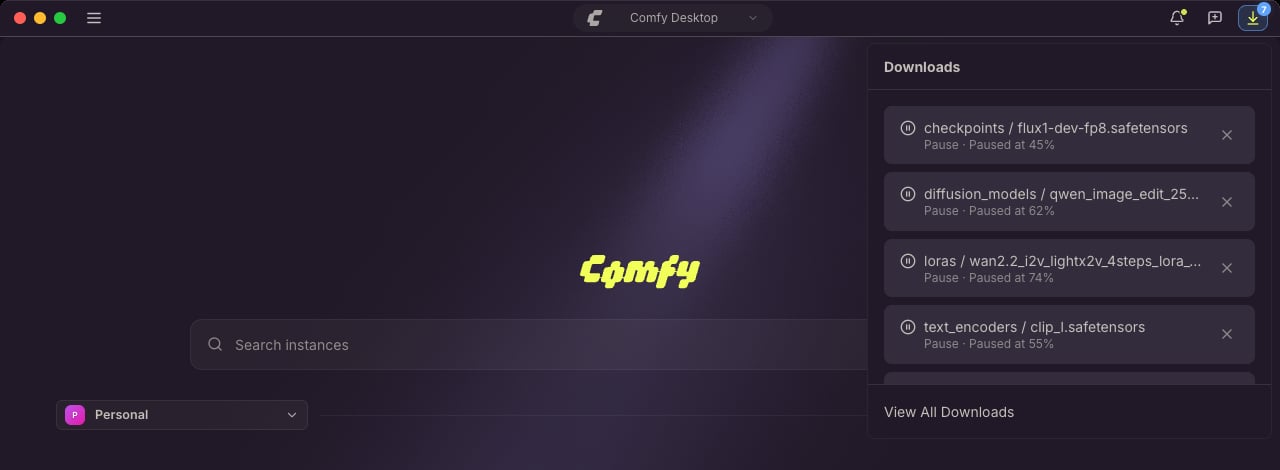
- Click a finished row to open the folder that holds the file (Show in Finder, Show in Explorer, or Show in Folder, depending on your system).
- Retry a failed or cancelled download.
- ✕ to cancel an active download, or remove a finished one from the list.
The full downloads view
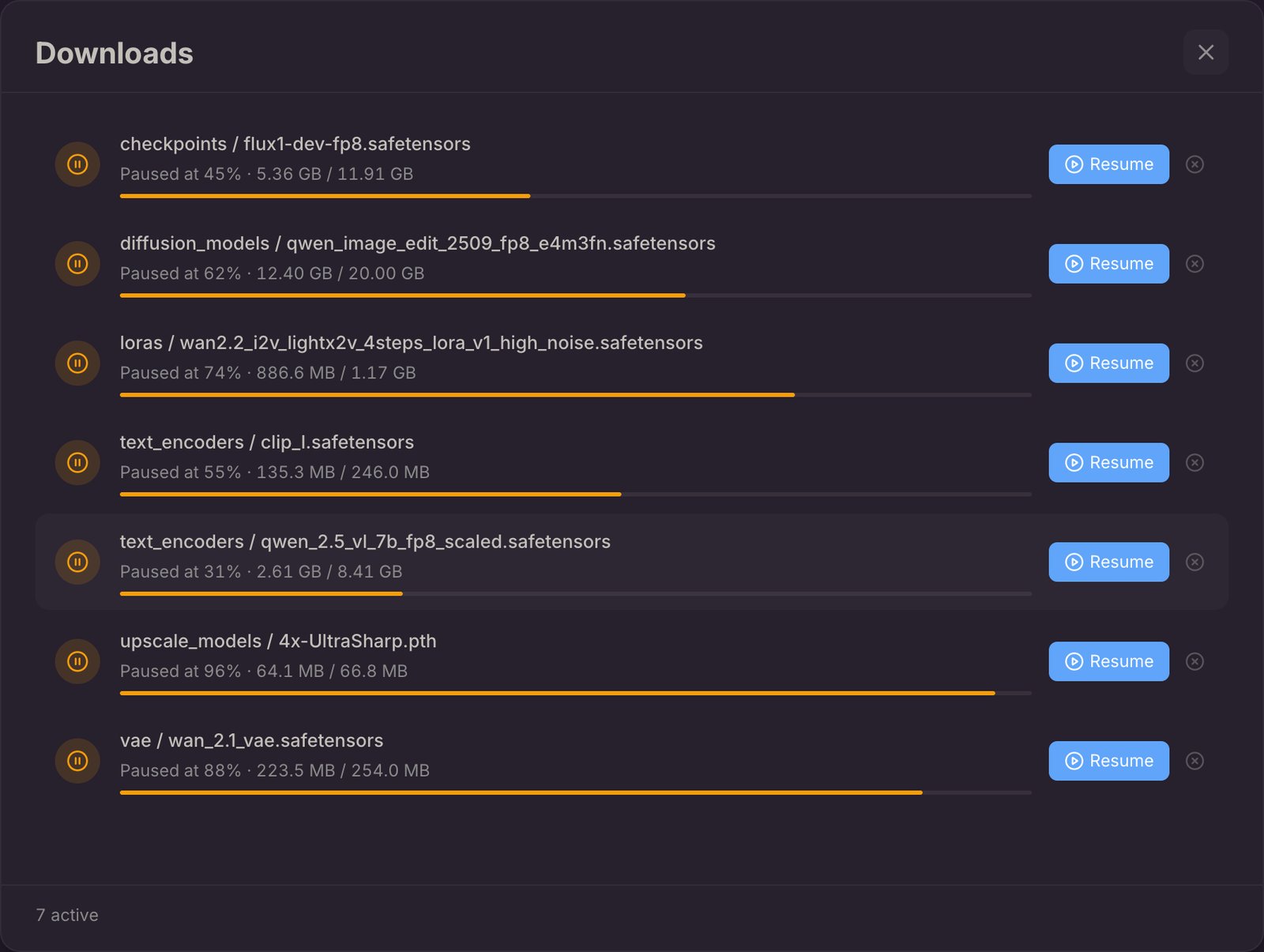
The full view keeps the download history for the app and adds the controls that do not fit in the tray:- Filter the list by All, Active, Completed, or Failed.
- Pause an active download, and Resume a paused one.
- Retry a failed or cancelled download.
- Open the file’s folder, or remove a single row.
- Clear finished to remove every finished row at once.
Quitting with downloads in progress
Model downloads are resumable. If you quit Comfy Desktop while a model transfer is running, the bytes already received are kept, and on the next launch the transfer returns as a paused row in the Downloads tray. Open View All Downloads to Resume it from where it stopped, or cancel it to drop the partial file. Output downloads from remote instances transfer on a separate path and do not resume after you quit. When a template’s models are still downloading, Comfy Desktop asks you to confirm the quit, because the template setup waits on those files:- Quit Anyway: pauses the downloads and quits. The rows are still there on the next launch.
- Keep Downloading: cancels the quit and leaves Comfy Desktop running. This is the default.
Where downloads are saved
Model files are written to the instance’s model download directory: the shared model directory marked DOWNLOADS (set with Use for Model Downloads) when the instance includes shared model directories, otherwise the instance’s ownmodels folder. Shared directories are configured in Desktop Settings, and each instance can opt out of them in its Manage panel Storage tab.
Outputs downloaded from a remote instance go to the shared output folder when the instance uses it, otherwise to the instance’s own output folder. A remote instance can turn automatic output downloads off with Auto-Download Outputs in its storage settings.